FontBegone: replace fonts by outlines in PDF files
Motivation
Update October 2022: Adobe has announced that its Illustrator product will soon cease supporting Type-1 fonts. This may give this old page renewed relevance, so I made some changes that should allow the code below to run on recent Macs.
 Here is a small Mac OS X Application built with Apple's Automator and Python. I use it to incorporate all or part of a
 PDF file into Adobe Illustrator.
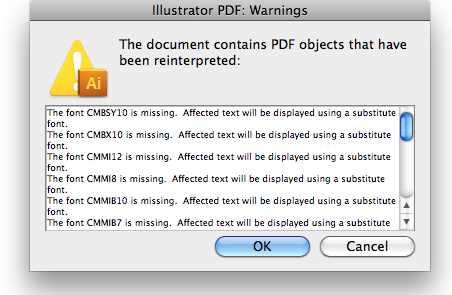
Its function is to replace all fonts in the PDF file with outlined paths, to prevent Illustrator from issuing warnings about missing fonts and garbling the original text in the process. If the image on the right looks familiar to you, then this page may be what you need.
 The original version of this Application dates back to a discussion on the OS X TeX mailing list in 2005. There is some more discussion of these font-related issues on the Illustrator page linked here.
What does FontBegone do?
FontBegone is a utility that can be run either by dragging files onto its icon, or by simply tapping its icon while a PDF is on the Pasteboard of your computer.
Whatever document you feed into FontBegone will then be processed by invoking ghostscript. All text will be replaced by outlined paths (i.e., graphics objects) so that the shapes of the original characters stay exactly the same, instead of being replaced by substitute fonts.
The advantage of this is that you can then edit the outlined paths using all of Illustrator's drawing tools. The downside is that Illustrator's Text tools don't apply to the outlined paths: you no longer have text, but graphics to edit.
Requirements
You need to have ghostscript version > 9.15, in particular the gs command, installed on your computer.
Also, the latest version is written using Automator, so it will only work in OS X 10.6 (Snow Leopard) or later.
Finally, you need a Python 3 installation with the PyObjC package installed. For instructions, see the PyObjC documentation (this step has become necessary on recent versions of the MacOS operating system). As always with Python, you have to take great care to install this for the correct version of the interpreter. In the application, I assume that there is a python executable (or symlink) at /usr/local/bin/python.
If you have python installed in a different location, you may create a symbolic link to it with the following Terminal command (it won't do anything if there's already a file /usr/local/bin/python):
sudo ln -s `which python` /usr/local/bin/python
Installation
- Download the
zipped Application FontBegone.zip.
- If not done automatically,
unzip the file (by double-clicking on FontBegone.zip).
- Move the resulting
FontBegone to your Applications folder (or anywhere you prefer).
- In
Terminal, create a preferences file named .fontbegone to set the correct Path for the ghostscript executable. This can be done automatically using the one-line command echo "gsBin = '"`which gs`"'" > ~/.fontbegone.
- Optional: On my computer, I added the
FontBegone application to the toolbar of my Finder windows, see this screenshot (FontBegone is not the only home-made utility I've placed there, as you can tell by the weird-looking icons):

To do this, just Command-drag the application icon into the top part of any open Finder window (to position it properly, keep dragging until you see a green plus sign indicating that dropping the icon is allowed).
Usage
There are two ways of using FontBegone:
- Select one or more
PDF files, and drag them onto the FontBegone icon .
While the application is working on the conversion, a spinning gear  will appear in your menu bar (top right). Depending on the file size, this process can take some time. When finished,
 FontBegone will have created a new file for each input file, differing in filename by the addition of "-nofont.pdf". So an input file "paper.pdf" will be converted to "paper-nofont.pdf" in the same directory. These output files will usually be larger than the input files. That shouldn't be too surprising, given the fact that each character of text is now drawn as a little picture!
FontBeGone doesn't just convert entire files, but also PDF images copied from arbitrary sources. For example, use the Select Tool of your favorite PDF reader application to pick a rectangle in a PDF document, and copy it to the Pasteboard. Before attempting to paste into Illustrator, just tap the icon of FontBegone to activate the application (a single click is enough if you have the icon in the Finder toolbar or on the Dock). Again you will see a spinning gear in the menu bar until the conversion has finished. Now the converted PDF will be on the Pasteboard and you can insert it into Illustrator without the dreaded font warnings. With this approach, you only need a single click between copying and pasting a PDF from any source to Illustrator.
More information (not required reading)
- There are some older versions of
FontBegone which don't allow conversion on the Pasteboard:
-
The program needs to execute the shell command
gs. These must be installed, otherwise FontBegone will exit without doing anything.
-
To insure that FontBegone finds the shell commands, the
PATH variable must be set correctly.
- Troubleshooting, in case the conversion doesn't work:
-
Make sure you can execute
gs from the command line. The output of gs --version should be larger than 9.15.
-
If the last step works, then the path specified in
.fontbegone may be incorrect.
-
Here is the python script that I use for the conversion:
import os,sys,tempfile,shutil
from AppKit import *
from Foundation import *
def doconversion(inname,outnamepdf):
r1=os.spawnlp(os.P_WAIT,gsBin,gsBin, "-sOutputFile="+outnamepdf,"-dNoOutputFonts","-sDEVICE=pdfwrite","-q", "-dbatch", "-dNOPAUSE", "-dQUIET", inname, "-c", "quit")
return r1
rr=64
tmpdir = tempfile.mkdtemp("","fontBegone","/tmp")
inname=os.path.join(tmpdir,"infile.pdf")
outnamepdf=os.path.join(tmpdir,"outfile.pdf")
preferences=os.path.join(os.environ["HOME"],".fontbegone")
if os.path.isfile(preferences):
prefscopy=os.path.join(tmpdir,"fontbegonePrefs.py")
sys.path.append(tmpdir)
shutil.copyfile(preferences,prefscopy)
import fontbegonePrefs
gsBin = fontbegonePrefs.gsBin
else:
gsBin = "/usr/local/bin/gs"
if len(sys.argv) > 1:
for arg in sys.argv[1:]:
imgFileName = os.path.abspath(arg)
if os.path.isfile(imgFileName):
[imgDir,imgName] = os.path.split(imgFileName)
outFileName = os.path.join(imgDir,os.path.splitext(imgName)[0]+"-nofont.pdf")
sys.stderr.write("converting "+outFileName)
shutil.copyfile(imgFileName,inname)
rr = doconversion(inname,outnamepdf)
if rr==0:
shutil.copyfile(outnamepdf,outFileName)
else:
sys.stderr.write("Conversion of file failed")
else:
sys.stderr.write("non-existent input file")
else:
board=NSPasteboard.generalPasteboard()
result = board.dataForType_(NSPDFPboardType)
if result:
result.writeToFile_atomically_(inname,1)
rr = doconversion(inname,outnamepdf)
if rr==0:
content=NSData.dataWithContentsOfFile_(outnamepdf)
board.declareTypes_owner_([NSPDFPboardType], None)
board.setData_forType_(content, NSPDFPboardType)
else:
sys.stderr.write( "Nothing to convert.")
try:
os.remove(outnamepdf)
os.remove(prefscopy)
os.remove(inname)
except:
sys.stderr.write("Conversion failed")
shutil.rmtree(tmpdir)
sys.exit(rr)
Jens Nöckel
Last modified: Sat Oct 1 14:43:01 PST 2022