2024-10-01
To help you get started/possibly avoid at least some tech support/give some advice here’s a brief note on Python development environments.
So, welcome to the zoo that is software configuration!
It won’t come up very often in the course assignments themselves, but
for tech support I will generally assume you have access to a POSIX compliant shell
(command-line) somewhere on your machine. If you’re using a Linux or Mac
operating system your default shell is likely bash or zsh (or some variant
or equivalent thereof accessible through some kind of ‘terminal’
program), in which case you should be good-to-go. If you’re on Windows
things may be more complicated - I’m not very up to speed on the current
state of powershell -
but I can recommend looking into the Windows Subsystem
for Linux (WSL), or git-bash, and/or CygWin as ways to get a *nix-like
environment on Windows that I’ll be able to help with.
You may also want an editor like Visual Studio Code or Spyder - though there are many other valid choices for writing/editing your software for this course. (if you really want to be a shell guru there’s always the likes of neovim; beware the learning curve.)
You’re welcome to set up your technology stack however you’d like, but I can’t guarantee I’ll be able to debug anything or replicate your environment faithfully when testing your assignments if you deviate too far from modern Linux dev standards and/or common software (I can help with MATLAB or Julia as well as Python - this guide just anticipates Python will be the most common language choice, and that MATLAB is more self-contained/explanatory).
If you don’t have it already in some form, you should download and install
Python3 for your system. You’ll also, at a minimum, need to be able
to install
packages (<– READ THIS LINK if you’re at all unsure about what is
needed. If you have pip you’re good to
go with respect to this step). There are some alternative ways of
getting/using python (e.g. conda)
- but this note will focus on a pretty generic workflow that should be
compatible with essentially any up-to-date system-level python
installation.
Depending on your operating system, it might be more appropriate to
use a package manager like apt
(for Debian Linux derivatives like Ubuntu - others for other distros),
homebrew (for MacOS), or winget/chocolatey (for Windows) instead of
downloading and running the installer linked above. Detailed
installation instructions will vary a lot by OS, so I won’t provide them
here - learning how/where to look up system specific ways to do things
(and getting familiar with your machine and customizing it to your
liking) is an important skill to develop, but you’ll mostly have to find
favorite resources and methods yourself over time.
We’ll often want our code to depend on various external libraries
rather than implement everything from scratch ourselves (even
though that is often necessary or useful - there are situations we won’t
want to reinvent the wheel and where a better solution than we could
write in a reasonable amount of time/effort exists). The default Python
package manager is pip (there are
others: conda
is quite popular and handles some of the virtual environment features
mentioned below - there’s also poetry, or I am
personally partial to uv. Each work a bit
differently, so we’ll just cover a barebones python workflow here).
Python projects often list their ‘dependencies’ in a
requirements.txt with contents like:
jupyter
numpy
matplotlib
pandas
scipy
simpy
(some of these are dependencies that will come up in the course -
relatively recent versions of each should all work identically well so
this list does not specify version numbers but
if you need to lock specific version number down you can do so).
Given such a file you can install the dependencies for a project into
the active environment (usually a venv - see below) via
pip:
pip install -r requirements.txtmodules can also be installed explicitly by name:
pip install numpy scipy(Depending on many OS particulars and settings, you may run into permission issues with these commands - let me know if you need help tracking down how to solve them for your particular setup.)
If pip is only present in your python installation but
not exposed to your commandline you may need to use
python -m pip <remainder of the pip command goes here...>It can be important to manage dependencies carefully across projects
and over time. For example, suppose you write some code for this course
which relies on some specific feature of the current version
numpy1.22 (you might use a particular niche function or
rely on a name or shape for some arguments).
Two or three years from now the latest numpy version might
change the name(s) or interface of the feature you used - and your code
will stop working! If you want to run your old code you’ll need to use
an older version of numpy, but that may be difficult if you
have some newer project that wants to rely on the newer version of the
library. While you can ask pip to install any version of a
library you want at any time (and store a list of required versions in a
requirements.txt), uninstalling and re-installing different
versions of libraries all the time is messy and liable to break
something (especially if you need to manage multiple libraries this
way).
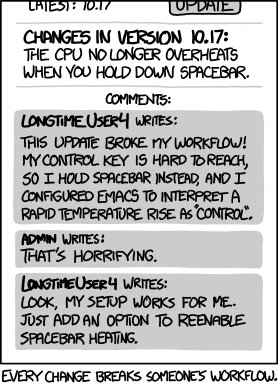
The somewhat standard solution to this kind of problem is a “virtual environment” - rather than rely on our global shell environment to keep track of all our projects somehow (hoping nothing winds up incompatible), we’ll manage an independent environment for each project.
Simple dependency management via a virtual environment can be done
entirely with python and pip using the venv
module - in your shell, in some directory relevant to your project(s)
invoke:
# use the python venv module
# to make a new virtual environment stored in the env dir
python -m venv env
to create a new virtual environment. You can then activate the environment (tell your shell it should use the contained version of python and associated libraries) anytime you want to use it by calling:
source env/bin/activate # run the activation script located in the env dirYour shell will then use a self-contained version of
python and any libraries you install with pip
while in this mode. I recommend using a venv of some kind
while working on this course - at the very least it will give you a
place to experiment without mucking up your global python
installation.
You can leave the virtual environment at any time by calling
exit.
Suppose you want to run a local jupyter notebook for
yourself - say, to play around a bit and get some ideas ready for an
assignment that will require some numpy
functions and matplotlib
plotting - but don’t yet have anything set up other than your global
python installation. Here’s a basic workflow using the methods described
above:
# make a directory for the course and "change directory" (cd) into it
mkdir uoph410-510_image-analysis && cd uoph410-510_image-analysis

# create a virtual environment for the course and activate it
# in the currently open session with your shell (not persistent)
python -m venv env && source ./env/bin/activate pip install jupyter numpy matplotlibIt can be convenient to append these to a
requirements.txt in case you want to send anyone else your
code (you shouldn’t send a venv directory - they’re not
portable between systems).
# create the .txt, ask pip for its requirements,
# and "pipe" (>>) the text output from pip into the end of the file
touch requirements.txt && pip freeze >> requirements.txt
Launch jupyter notebook & navigate creating a
new .ipynb in the browser interface.
Voila! Notice that installing a new shell command for interacting
with python (jupyter) could be managed in the same way as a
package providing a library you can use in your code. Both are only
enabled locally, and temporarily in the current session without
polluting your global environment (you won’t have any issues in the
future anywhere else on your machine because of any software we just
installed). If you have dependency issues, just shut down the notebook
(CTRL-C in the running terminal) and repeat (2), adding any
packages that are throwing various “not found” errors.
Note: jupyter is not required
(nor even really emphasized) in this class - but it can still be a
useful tool for quick sanity-checks and pretty-printed tests or document
preparation. Generally this course will prefer you to write your code in
a more modular fashion than jupyter’s stateful
environment encourages, i.e. you should structure and think of your code
overall as module/library
development rather than each assignment a one-off notebook. (Though
an optional workflow can be to develop your own module, and import it
into a notebook for use with particular values).
The guide above covers just a very basic python environment and workflow. For a more featureful development experience you may want to do your own research on (in addition to some of the things scattered above):
Linters like ruff or black, which help you ensure your code is written in a consistent style - to help with readability.
Unit testing with pytest or unittest
(along with many plugins for each/either). In particular, you
might find ipytest
useful for checking that your code is behaving as you expect while you
develop your solutions.
Type checkers like mypy or pyright, while python does not have static typing (the interpreter does not know the type of an object before runtime) - there is some loose tooling available to help you try to structure your code in a type-safe (or at least duck-typed) - and more likely to be correct - way. These tend to integrate well with testing frameworks mentioned in the last bullet.
You may want to manage a version-controlled git repository for your work on the course. Git and Github are ubiquitous in modern software development. While we won’t cover their use in this course, privately managing your work with these tools would be excellent practice.
Good luck, have fun, don’t die!
(page raw pandoc .md, github
repo)