Contemporary media practice involves a rigorous investigation of, and engagement with continually evolving technologies. Our digital arts program encourages students to combine an understanding of the theoretical discourses of new media and visual arts with strong technical sophistication, a rich sense of visual design and an ability to articulately express themselves as artists.
About Interactive Digital Art
Interaction in Digital Art can mean many things. Interaction may mean participation or ownership in an experience, but it also could refer to data-collecting interactive installations in art galleries or Smartphone user interface platforms. Yet again, interaction may stem from hacking into sensors in video game systems to exploring circuitry and robotics. This course will delve into the rich field of Interactivity across various disciplines and media. The unifying thread of this exploration is the question of how Interaction and User Experience have been utilized in art practice historically and where this burgeoning field might lead the creative fields in the future.
Interactive Digital Arts is one of the three foundations courses within the Digital Arts program. This lab/lecture course features 10 lectures given once a week, which cover Interactivity in contemporary art practice, within an art historical context, in art theory and how this field is seeping into other areas. Twice a week students will meet in computer labs to get hand-on experience with the tools of Digital Interactivity, mainly Processing (open-source visual programming), and Flash (for dynamic, animated, sound/video, sensors). There are also optional workshops in circuitry, repurposing technology, and combining sensors with screen-based work.
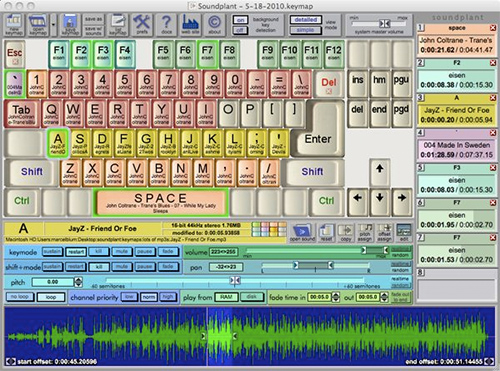
The MAKEY MAKEY works via electrical signals passing through conductive materials. The EARTH always needs to connect to the each button (UP, DOWN, LEFT, RIGHT, SPACE, etc) in order for the computer to "hear" a keystroke or mouse event.
Usage Tips:
If you want your body to be one of the elements activating a sounds/event, it works well to use a piece of playdough tucked on the inside of a bracelet and have an alligator lodged inside of the playdough. Connect this alligator clip lead to the EARTH. The playdough increases conductive surface area between your body and alligator clip. If you then touch another wired up element with your skin (say a banana that is wired up to the UP key), it should activate that key.
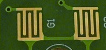
If you want a touch activated circuit but do not want your user to have to wear a bracelet, consider using a trick from the circuit board industry. In the below image, see how the bottom "fingers" of circuit do not quite touch the top fingers. If you were to touch either of these yellow pads, then your touch would complete the circuit. Note that both of the lower (upward facing) forks are connected to each other. These share a common ground (or EARTH). Same can be done with the Makey Makey.
Note that you can extend the capabilities of the Makey Makey using small jumper wires. This opens up the WASDFGHJ keys, as well as emilate mouse movement in the UP, DOWN, LEFT, RIGHT & Left/Right mouse buttons. When using these, remember that they still need to connect with EARTH to work.
And if you are ready to really extend the Makey Makey (and you are familiar with the Arduino environment), you can change the functionality of the Makey Makey by recoding its settings. The includes changing sensitivity thresholds, remapping keys, etc. You can also have multiple Makey Makeys plugged in at the same time (especially cool if one has original key mapping, and the other has new key mapping). See more at: https://learn.sparkfun.com/tutorials/makey-makey-advanced-guide
Tips and Tricks for using the Makey Makey
MATERIALS TO TRY
Most fruits and vegetables work great.
Lots of other foods work too. We've tried marshmallows, gummy candies, macaroni and cheese, cupcakes, shrimp, and lots of other things.
Plants can work too. Try some leaves or flowers, but nothing too dry.
Play-Doh, Model Magic and other clays work very well as long as they stay moist.
People are conductive! Connect one person to ground, and another to an input, and you can trigger sounds when they high-five.
Graphite from a pencil can work. Make thick, dark lines, and be sure to draw on a smooth surface.
Foil and other metal objects will work. Try out coins, magnets, nuts and bolts, forks and knives, or pots and pans.
Materials to try
Software Tutorials PROCESSING MATERIAL
Daniel Shiffman's HOUR OF CODE: begin coding with this fun and friendly introduction from NYU's ITP professor Daniel Shiffman.
Part 1: If you are new to the Processing programming language, start here. This introductory tutorial assumes you have never done any programming and/or never used Processing before.
Note that you can download Processing for free (it's open-source!) at www.processing.org
Part 2 goes over COMMENTING, DATA TYPES when declaring variable, and a more advanced programming with shapes.
Part 3: How to move items (think physics, motion, velocity and acceleration), as well as how to use CONDITIONAL STATEMENTS (if this, then that...).
Part 4: This tutorial introduces the idea of arrays and how they can create a much fuller and more dynamic program.
For Loops Explained: This video tutorial helps demystify the potentially confusing yet all-important FOR LOOP to beginners.
ARRAYS part 1: This video tutorial focuses on creating an array using text.
ARRAYS part 2: This video tutorial focuses on using arrays with images.
Part 5: Using TEXT in processing, using the split() command to break up a body of text into individual items.
pushMatrix() & popMatrix(): If you want to do any advanced work with rotating, scaling, translating or P3D, it's time to learn and understand the pushMatrix() & popMatrix() combination. [link to YouTube]
How to load image files from either remote or local locations into your processing sketch (links to Processing Language Reference)
Until a better resource is updated in this section, please see:
https://processing.org/reference/XML.html and also from Processing, go to FILE>EXAMPLES>TOPICS>ADVANCED DATA>XMLYAHOOWEATHER
How to take a piece of text (String) and split each word into items in an array. Also included, how to cycle through those arrays and search for a certain word.
Using Audio in Processing (Processing now uses the Minim library that installs with the program).
The best way to get started is to open Processing and go to: FILE>EXAMPLES>LIBRARIES>MINIM>PLAY A FILE
Forgot how a command works or want to learn more advanced features and programming options? Check out the Official Processing Reference page that has all of the language's built-in commands.
Source files to get started with using the WiiMote with Processing.
TITLE: INTRODUCTION TO QUARTZ
This short video tutorial is an introduction to Quartz Composer. This tutorial assumes you have never used the program before and want to get started. Duration: 7:45
TITLE: AUDIO REACTIVE VISUALS
How to use live microphone input to affect visual properties of a rendered layer (in this case a cube). Video Duration: 13:19
TITLE: MANIPULATING VIDEO PLAYBACK SPEED AND POSITION
How to bring in a quicktime video file and have it play back with sound, toggle the video on and off, and alter the playback speed of the video. Duration: 7:49
TITLE: THE INTERACTION PATCH DECODED
Learn about the elusive yet powerful 'Interaction' patch. This allows you to selectively interact with a certain sprite (click, hover, drag an image like a button). Duration: 12:23
TITLE: TOGGLING VIDEO ON AND OFF
The toggle patch allows you to switch something from ON to OFF or OFF to ON. In this tutorial we turn a movie file on and off by hitting a keyboard key. Uses the Keyboard patch. Duration: 7:25
TITLE: THE POWER OF CONDITIONS
This short video tutorial covers the CONDITIONAL patch, AKA an IF > THEN scenarion, as well as the LOGIC patch which allows two conditions needing to both be met before an action happens. This is a logical AND. Duration: 11:28
TITLE: MICROLOOPING AND GLITCHY VIDEO This tutorial covers ideas of visiting different moments of time within a video. This involves small loops and a keyboard input that changes the time selection affected in Quartz. Duration: 19:56
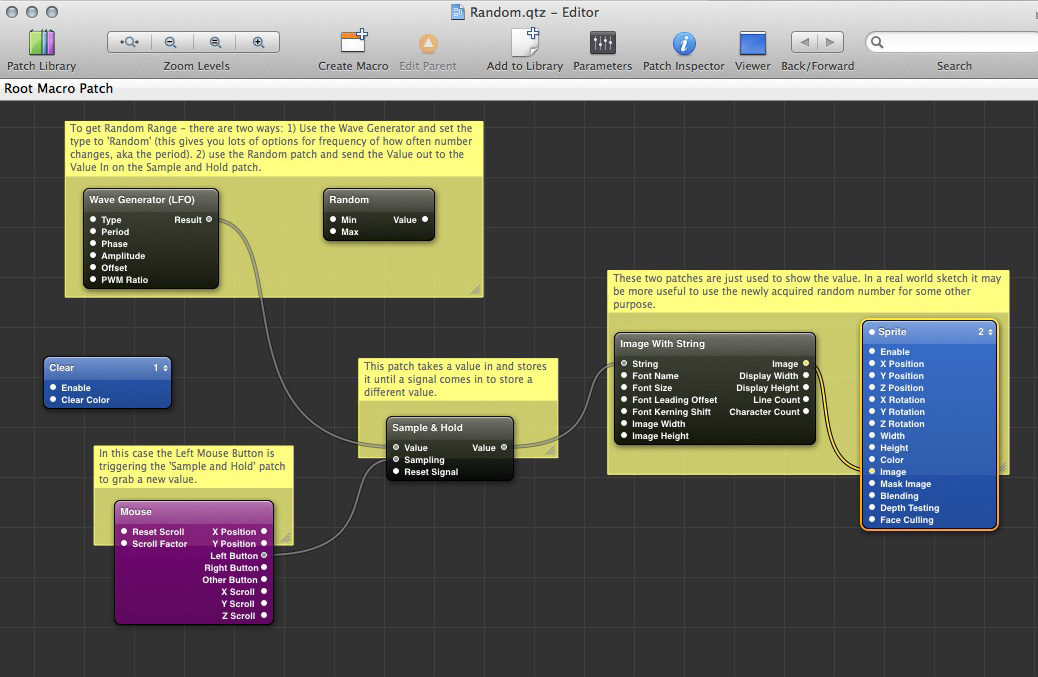
A quick Quartz Editor screenshot that shows how to use either the Random or the LFO wave generator to generate and store a random number for a project. LARGE IMAGE HERE.
For a project tutorial that scans and randomly chooses a picture from a folder: http://www.youtube.com/watch?v=du4kKr2ym14
Flash Tutorial 01: Introduction to the Flash Interface
A quick 5 minute video tutorial on importing video from YouTube into Flash so you can try out RotoScoping (drawing over a video layer, then removing the video layer).
Flash Tutorial 02: How to use BUTTONs in Flash (using AS2)
Flash Tutorial 03: Understanding Movie Clips (using AS2)
Flash Tutorial 04: USING SOUNDS in FLASH. Covers the use of sound files in Button states as an easy way to trigger sounds. Also, covers changing Publish Settings to increase the quality of sounds.
Flash Tutorial 05: A quick and efficient way to create a button that reveals a statement about the concept behind your Flash project(s). (5 min video tutorial)
Flash Tutorial 06: How to DRAG and DROP movie clips in Flash. This tutorial relies heavily on the source file (download below). This uses startDrag(), stopDrag() and sound file in a button.
Flash Tutorial 07 2.5 D Image Panning in Flash. This file shows how to use onEnterFrame to have Flash redraw something over and over again. This will allow you to use the MOUSE's position to affect the position of different movie clips on the stage.
Flash Tutorial 08: How to save your flash movie (SWF) and embed it in an HTML file straight out of flash. Also, a quick reminder about uploading your files to your UO webspace. (5 min video tutorial)
Flash Tutorial 09: This Flash video tutorial covers some real-world project questions that come up from students all the time:
1) How to have a continuous background throughout a movie
2) How to create introductory slides
3) How to create a movie clip that is STOPped, then trigger it to start
(these are all covered in this 22 minute-long tutorial)
Tutorial 10: This Flash sample flash file shows how to use the DRAG AND DROP functionality, but to also combine it with a DROP TARGET. A drop target allows you to trigger actions if you drop an object on another object. For more info see this web page: http://www.ilike2flash.com/2008/06/drop-target-property.html
Tutorial 11: This Flash video tutorial covers bringing a scanned image into photoshop, cutting out certain elements, and importing the image into Flash as a PNG file. This will maintain transparency of the removed elements and allow for a cleaner element in Flash.
Snippet: USING SLIDERs with Drag and Drop features. This example shows the setup and two ways to use the data...slider to affect alpha and to play through a movie clip.
Snippet: How to use MICROPHONE audio levels as an active input to your Flash movie. This requires that you have a microphone hooked up to your computer. (code and explanation in below files)
Advanced Material - Arduino Microcontroller to Flash: Some of the more advanced options emerge with the use of Arduino microcontrollers. Here are two ZIP files that will get you started with the process: